Skip to main content
Search
Toggle navigation
Menu
Search
Close navigation
Search
User account menu
Log in
Main navigation
Calendar
ePermitting
About
Learn More About Us
Business & Finance
Careers
Contact Us
Governing Board
Meetings & Event Calendar
Newsroom
WaterMatters Blog
Residents
Information for Florida Residents
Education
Emergency Storm Information
Florida-Friendly Landscaping
Free Publications
Video Gallery
Water Conservation
#MySprings
Water Restrictions
Business
Business & Finance
Agriculture
ePermitting
Water Conservation
Current Solicitations
Programs & Projects
Projects
FARMS
Minimum Flows and Levels (MFLs)
Reclaimed Water
Romp
Springs in West-Central Florida
SWIM
Watershed Management Program
Resources
District Resources
Free Publications
Data & Maps
Plans & Reports
Weather & Hydrology
Recreation
Areas
Activities
Recreation Activity Details
Reservations
Water Restrictions
Home
Resources
Data & Maps
Content Menu
About
Residents
Business
Programs & Projects
Resources
Recreation
Main Content
Content field image
Data & Maps
Demographics
Learn More
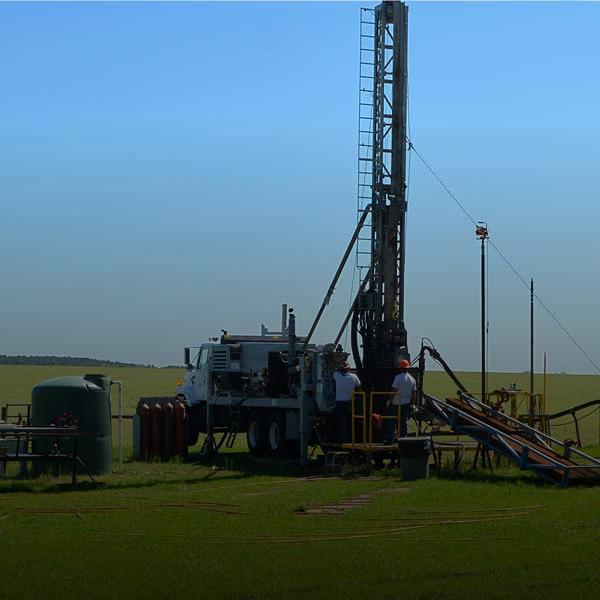
Geohydrologic
Get the Data
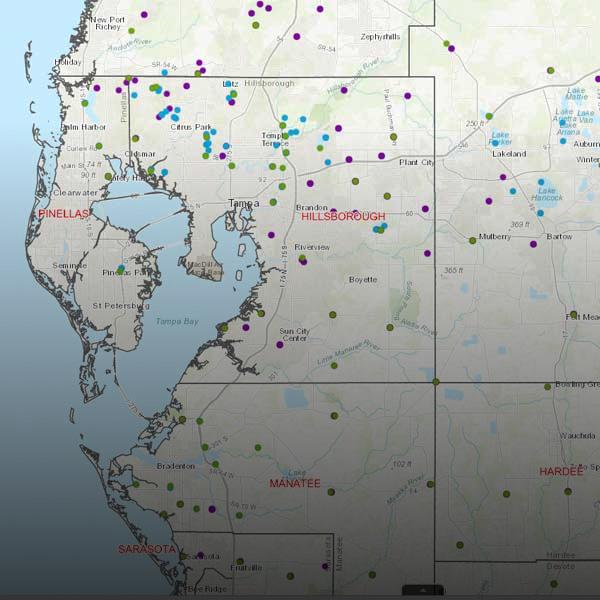
GIS, Maps & Survey
Show Me Around
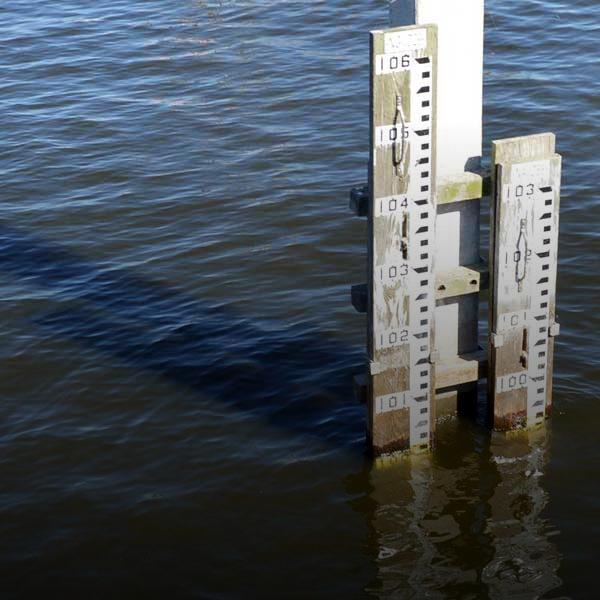
Hydrologic
Find the Information
Water Quality
Find Out More
Environmental Data Portal
Learn More
Daily Hydrologic Data
See What's Been Happening
Hydrologic Conditions Reports
Get the Details
Weather: Rainfall & River Flows
View the Data